Your shells.
One workspace.
Run your terminals side by side. Arrange your panes, save your layout, and get back to the work in front of you.
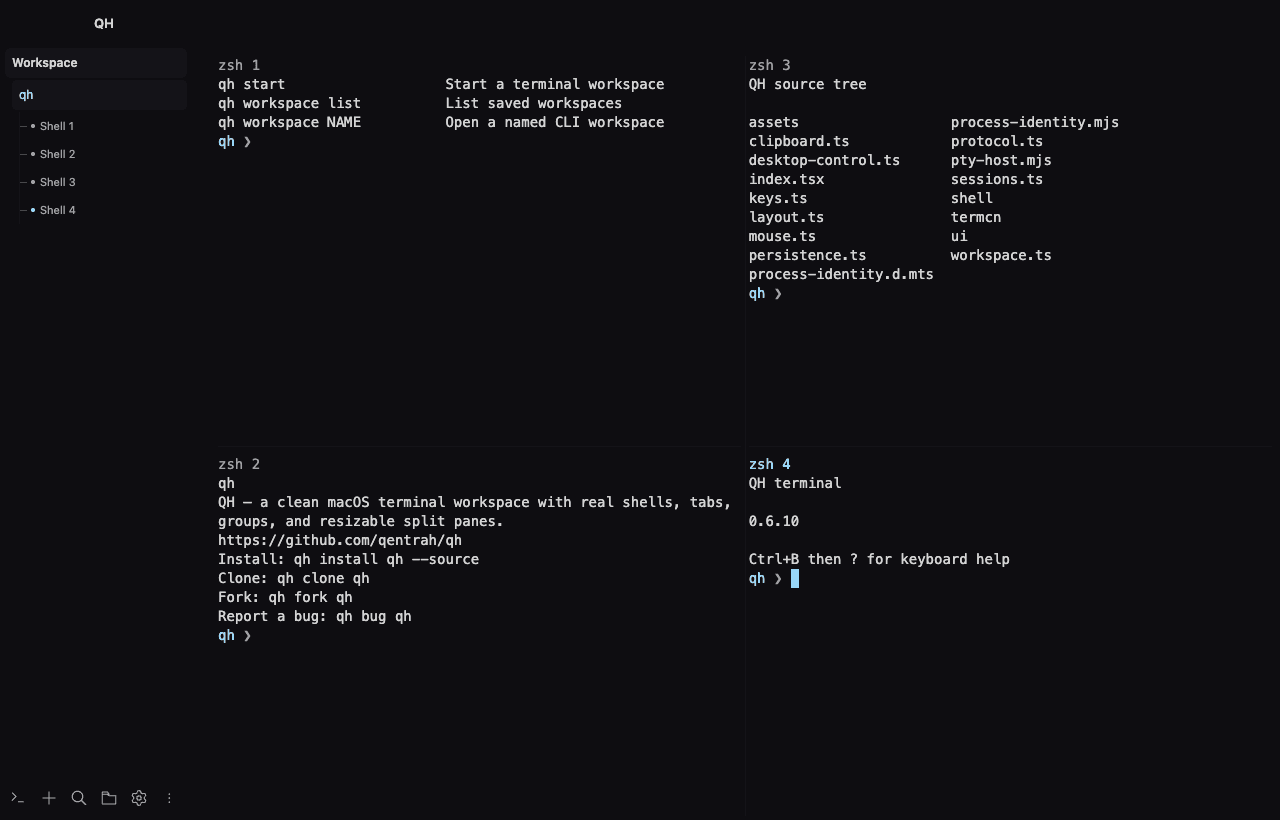
Room for every session
Keep your shell, development server, and coding tools together in tabs and resizable panes.
Your layout, remembered
Save tabs, groups, split sizes, and folders locally. Reopen your layout with fresh shells.
Make it feel like yours
Choose your colors, adjust the type, and set keyboard shortcuts and quick commands.
A little more room to work
Find your flow.
Keep your place.
Drag sessions into the layout you need. Resize a pane, move a tab, or collapse the sidebar when you want the terminal to take over.
- Tabs and groups for separate projects.
- Resizable splits with mouse and keyboard controls.
- Locally saved layouts and working folders.
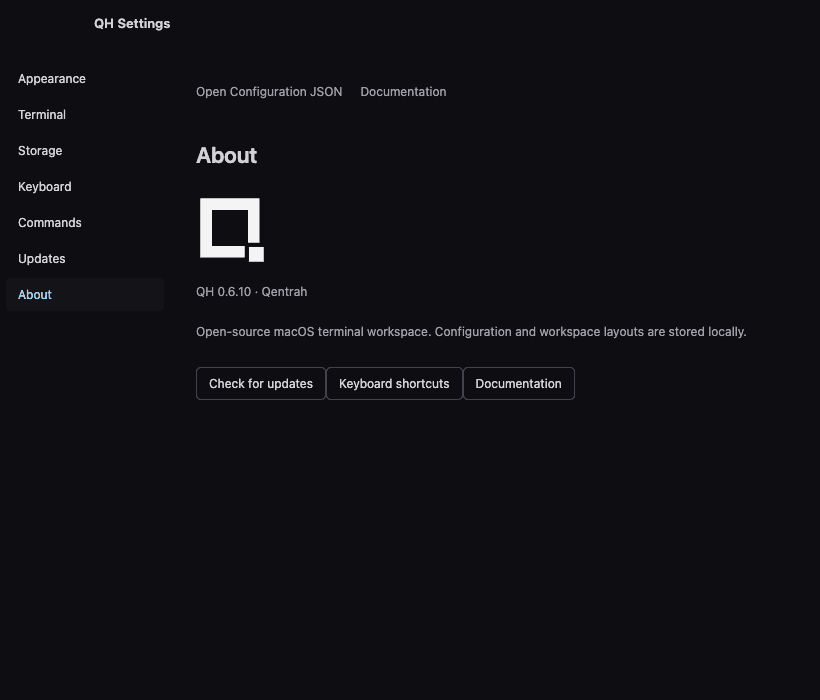
Desktop or terminal
Open QH from your terminal.
The macOS installer includes the runtimes you need and chooses the right build for your Mac. Download the script, inspect it, then run it.
Read the installation guidecurl -fsSL https://qentrah.com/qh/install.sh -o /tmp/qh-install.sh
# Inspect the installer before running it
less /tmp/qh-install.sh
sh /tmp/qh-install.sh
~/.local/bin/qhInstalling the desktop app?
Download the Apple Silicon or Intel ZIP above, unzip it, and open QH.app. These builds are locally signed and not notarized; macOS may ask for approval in System Settings → Privacy & Security. Saved layouts reopen with new shells, rather than resuming running programs.